You haven't signed in yet, you can have a better experience after signing in
*Please complete the payment within {{receiveCouponInfo.expire_at}}Previous use*
You haven't signed in yet, you can have a better experience after signing in



Activity Rules
1、Activity time:{{ info.groupon.start_at }} ~ {{ info.groupon.end_at }}。
1、Activity time:cease when sold out。
2、Validity period of the Group Buying:{{ info.groupon.expire_days * 24 }} hours。
3、Number of Group Buying:{{ info.groupon.need_count }}x。
Please Pay Attention
1、Teamwork process: Join/initiate a Group Buying and make a successful payment - Within the validity period, the number of team members meets the activity requirements - Group Buying succeeded!
2、If the number of participants cannot be met within the valid period, the group will fail, and the paid amount will be refunded in the original way.
3、The number of people required and the time of the event may vary among different products. Please pay attention to the rules of the event.
Movavi Video Suite 2027: A One-Stop Video Solution
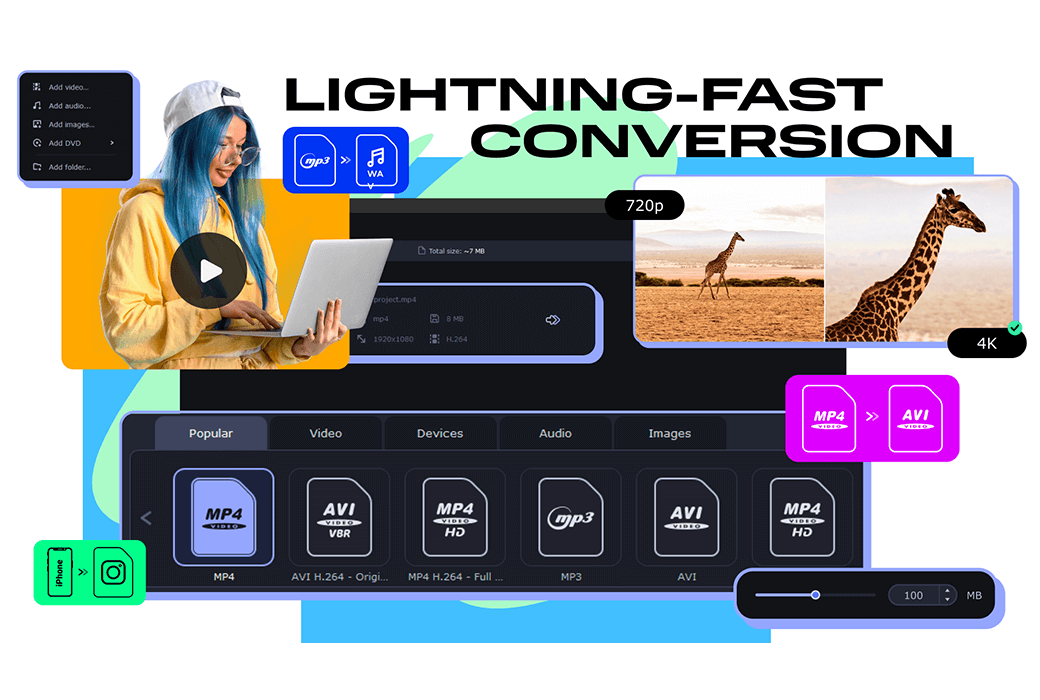
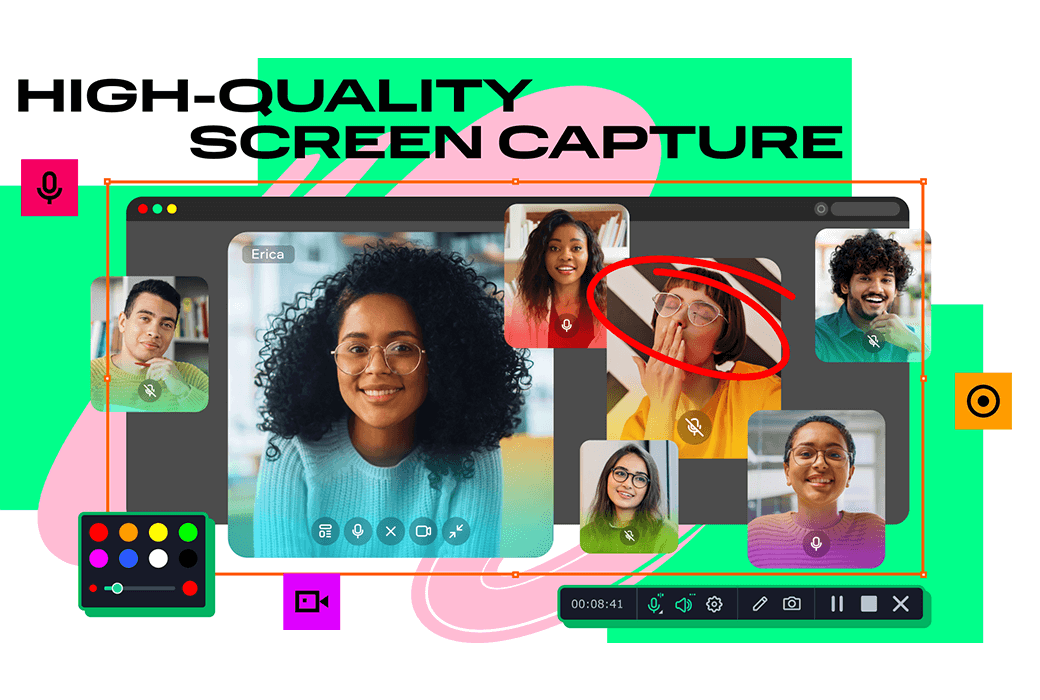
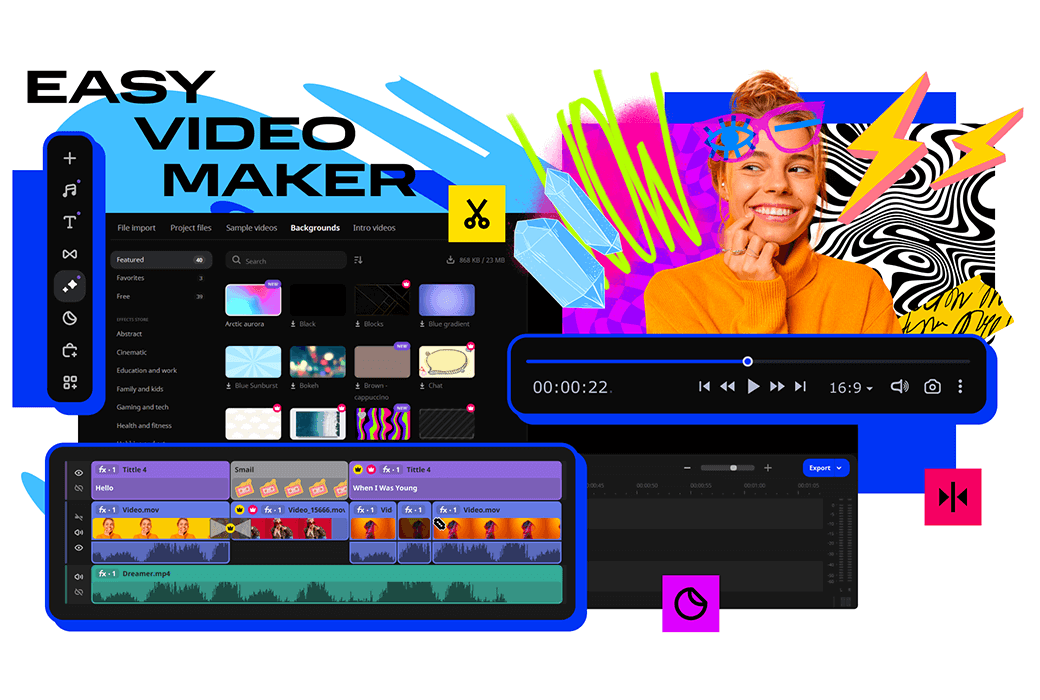
Movavi Video Suite 2027, with its intuitive tools and powerful features, makes video editing a breeze. Whether it's quick video editing or advanced operations like background removal and motion tracking using AI technology, this software meets all your needs. Moreover, it supports lightning-fast file conversion and convenient screen recording functions.
New Features, Unleashing Your Creativity
Video Editing
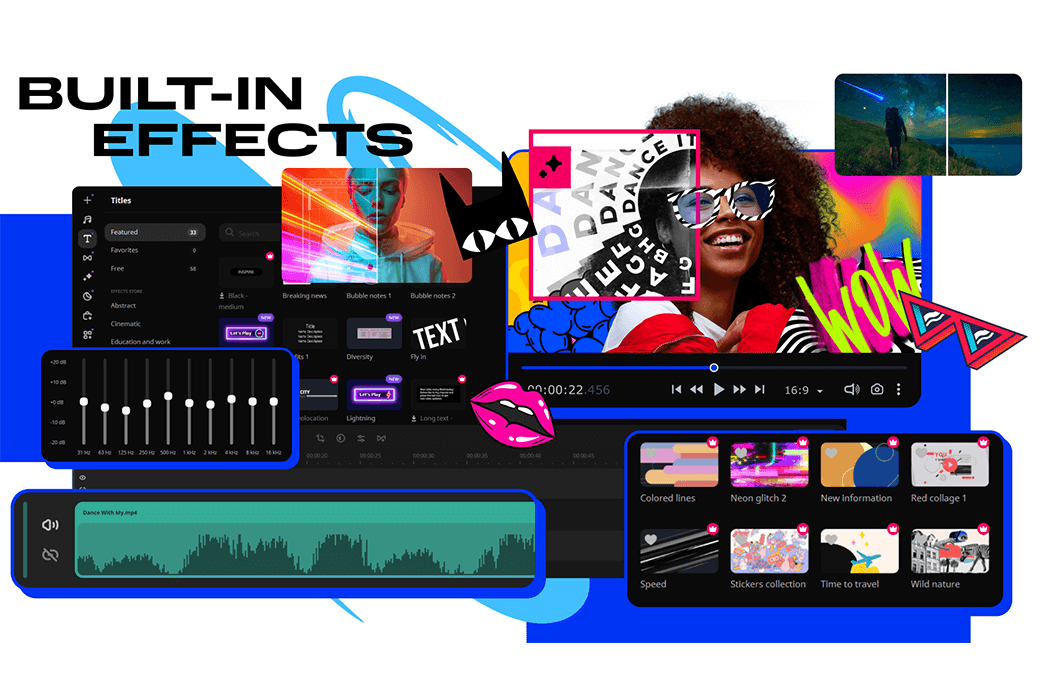
Quickly Create Killer Videos: Enjoy dazzling effects, use AI to quickly change backgrounds, eliminate noise, polish sound, and convert video formats in the blink of an eye.
Screen Recording
Capture Any Desktop Activity with One Click: Record video courses, software demonstrations, webinars, and more. Highlight mouse and keystrokes and draw on audio in real time to make it informative.
Practical Tools
Enhance your video production experience with some cool additional features: A powerful CD/DVD/Blu-ray burner, a simple media player, and a diverse library of content make your video creation even more exciting.
Official Website:https://www.movavi.com/suite/
Download Center:https://movavivideosuite.apsgo.cn
Delivery Time: Automatic delivery within 24 hours
Operating Platform: Windows, macOS
Interface Language: Supports Chinese interface display, with multiple languages available.
Update Instructions: Version 1: Supports updates and usage within 1 year; Lifetime version: Can be used for life, supports minor version upgrades.
Trial Before Purchase: Free trial available before purchase.
How to Receive the Product: After purchase, activation information will be sent to the email used for ordering. You can also view the corresponding product activation code in your personal center, under "My Orders".
Number of Devices: Can be installed on 1 computer.
Changing Computers: Uninstall on the original computer and activate on the new one.
Activation Guide:https://www.movavi.com/cn/support/activatekey/
Special Instructions: To be added.
References:https://www.movavi.com/cn/support/

Any question

To add a watermark or logo to a video, follow these simple steps:
Add watermarks or logos to videos (using photos or text)
Movavi Video Suite allows adding watermarks to videos in just a few minutes using a simple video editor. You can also use this simple tool to enjoy other features
Step one. Install video watermark generator
On Mac or Windows, follow the installation instructions to download and install Movavi Video Suite. The instructions on the screen are simple and easy to understand
Step two. Add the video to the program
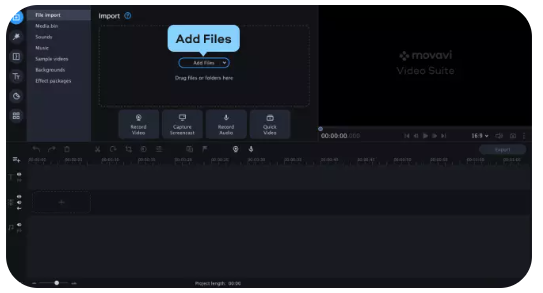
Before adding a watermark, you need to add the video itself to the program. Select the 'Edit Video' option. Click on 'Add File' and navigate to the corresponding video file. You can also click and drag the video file directly into the window
Step three. Add your logo or watermark to the video
Add as photo
It's time to upload your logo or watermark into the program now. It is best to ensure that the image you are using is transparent, unless you want it to appear opaque. You can use static and animated images
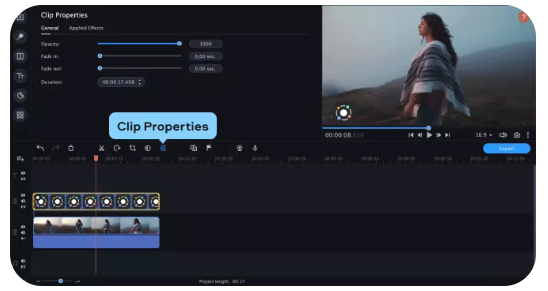
Add files with your logo or watermark to the timeline. Now start dragging this file until a new overlay track appears. Place the file on the overlay track so that it appears at the top of the video. By changing the position of the image clip on the overlay track, you can alter its appearance time in the video. To make your logo or watermark run through the entire video, drag the right edge of the image clip to the end of the video clip below
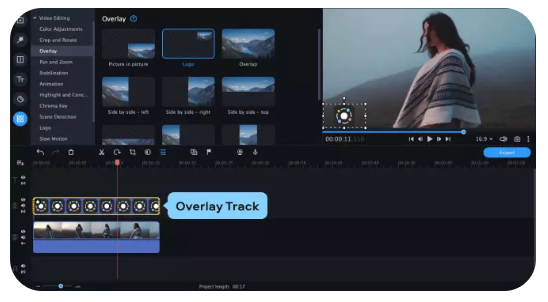
To edit an image, double-click on the timeline. On the left side of the player window, you will see the opened clip properties tab, where you can adjust the position and transparency of the logo or watermark, manually set the screen duration, or add fade in/fade out effects
Add as Text
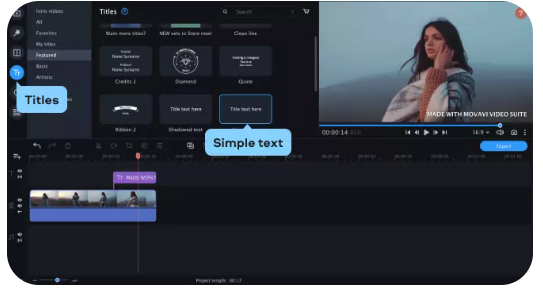
Open the title tag and drag the simple text title onto the timeline. Enter the text required for the watermark and change its size, font, and color. Drag the watermark to the target position in the preview window
Step four. Save results
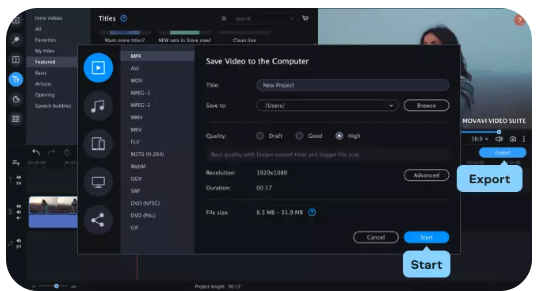
When you need to save and render the video, click Export. You will see a new export window where you can convert the video to the desired output format, set the file name and save folder, and select the image quality. After completing these, click on 'Start' to begin